Dev Diary Feb 25
Dear hacknplanners,
A new update is here! We wanted to give some love to those attachment files, many of you required more options in file visualization and management, so we wanted to take a step forward and provide some features not every other project management tool offers.
Let’s dive into the details!
3D file visualization
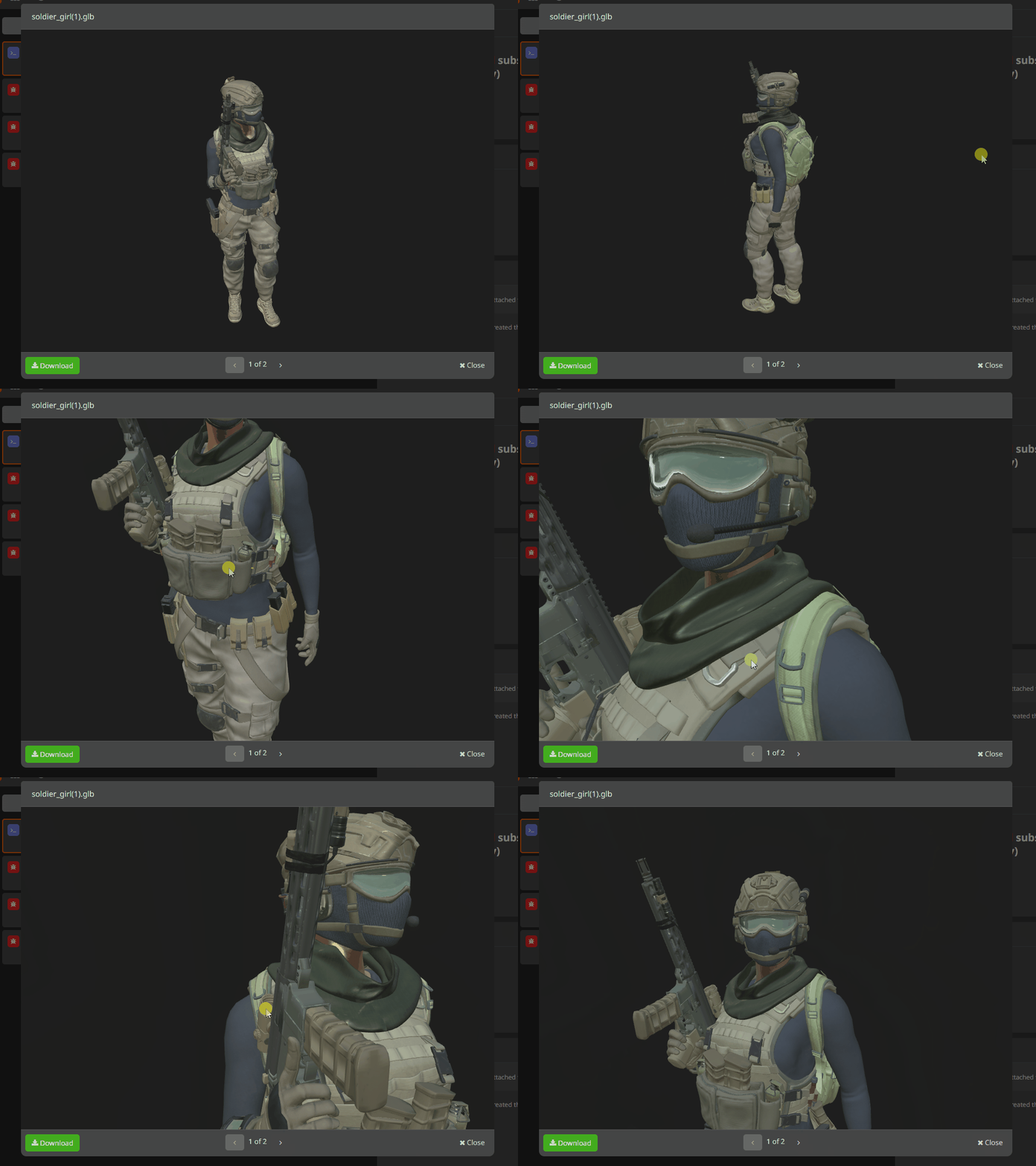
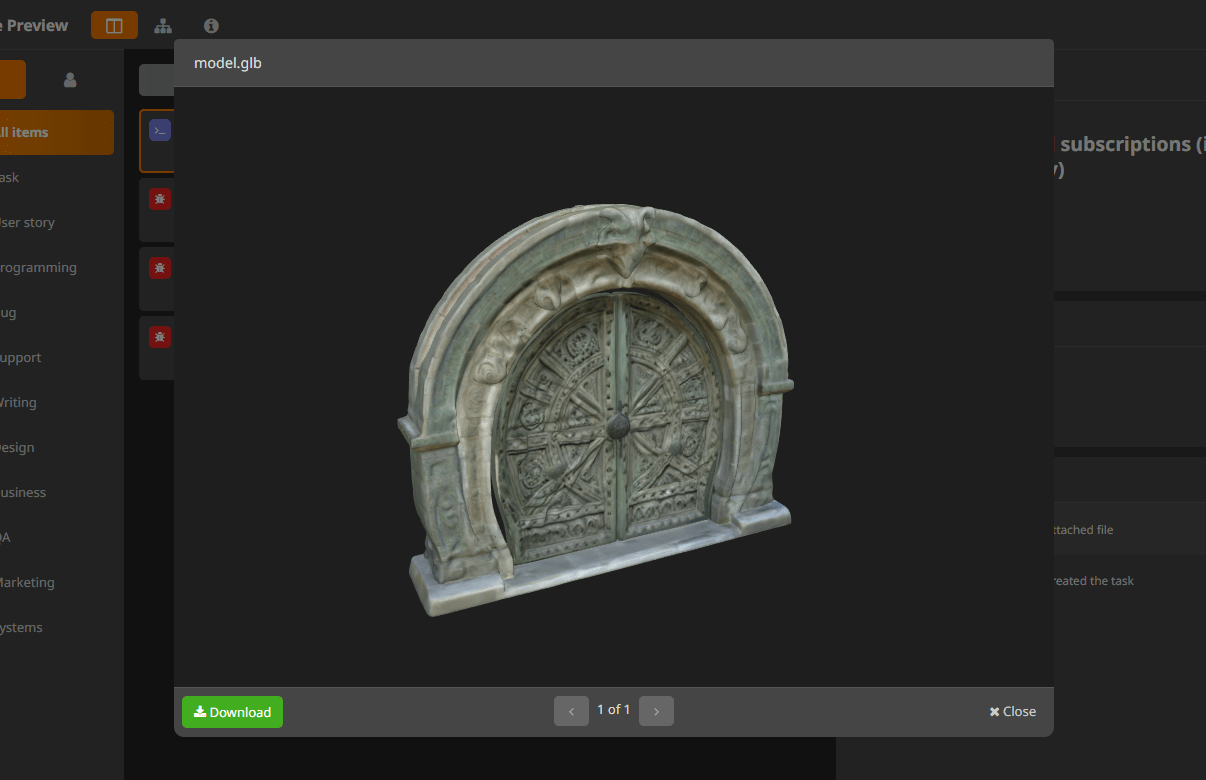
Yes, you heard correctly! HacknPlan is now the only project management tool that natively supports the visualization of 3D models. You can now include your asset management in HacknPlan by attaching and containing your assets with your design models or work items.
Currently, we support the following formats: OBJ, FBX, DAE, GLTF and GLB. Also, we support both embedded textures and 3D model containers where you can add multiple files into a single attachment.
You can now add single-file 3D models like any other attachment, by using drag and drop, selecting the file from the dialog box, adding it from the existing project files, or importing from Google Drive (premium only). Also, if you have model files and textures separately, you can add a 3D model file container by clicking on “Upload 3D model”.
Also, you can reference 3D model files in the description of work items or design elements, and the visualizer will be embedded in the description.
Note: We do not recommend embedding big 3D model attachments in descriptions, as they will be automatically visualized which can affect performance and speed of navigation.
Video and audio visualization
Yes, 3D model visualization is cool and all, but there are plenty of file types you can upload to your work items in HacknPlan that could be interesting to check out easily. It’s very normal to upload videos as a reference, progress, bug reports… and is also common to have audio files with some newly composed music or SFX.
HacknPlan now supports the previsualization of video and audio files. You can preview them by clicking on the attachments (like previewing images), or referencing them in the description of work items or design elements.
Storage management improvements
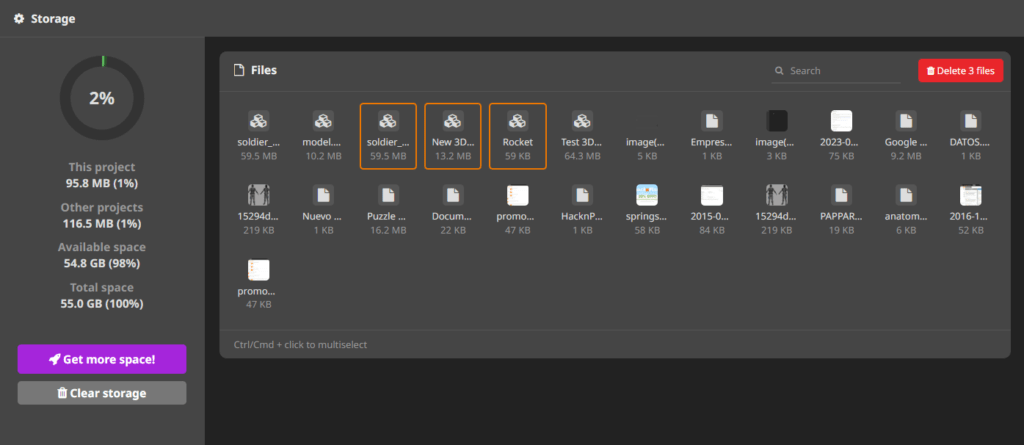
We have received plenty of feedback about the issues you face when you run short on attachment storage, and we decided to add some useful features to the project storage management page in this regard.
Search
You can now search for files by name, which will filter the file panel to easily spot and select what you’re looking for.
Multiselection
Multiselection of files is now available for everyone by using Ctrl/Cmd + click, so you’ll be able to remove multiple files at the same time easily.
Clear storage
As your project grows and you use more and more attachment files, it is common to run out of storage space. In this case, we recommend you upgrade or extend the storage of your existing subscription (keeping track of past issues and work is very important!). However, if upgrading is not an option, you can now clear your storage with this handy function.
By clicking on the Clear storage button, you’ll be presented with three options to free some space in your account:
- Closed work item attachments: It removes the attachment files of those work items that are completed in any board (current board, closed, open, backlog…). Note the files won’t be removed if they are also part of another item that doesn’t fit the criteria or a design element.
- Closed board attachments: It removes the attachment files of those work items that are in a completed board. Note the files won’t be removed if they are also part of another item that doesn’t fit the criteria or a design element.
- All project files: It removes all the attachment files in the project, with no exception. We don’t recommend using this option unless you’re 100% sure what you’re doing.
It’s important to remark these actions are destructive and the removed files can’t be recovered.
Let us know what you think of the new features. We are working on some highly requested improvements that we’re sure you’ll love. Stay tuned for more development news.
Happy planning!