Dev Diary Oct 24
Hi hacknplanners,
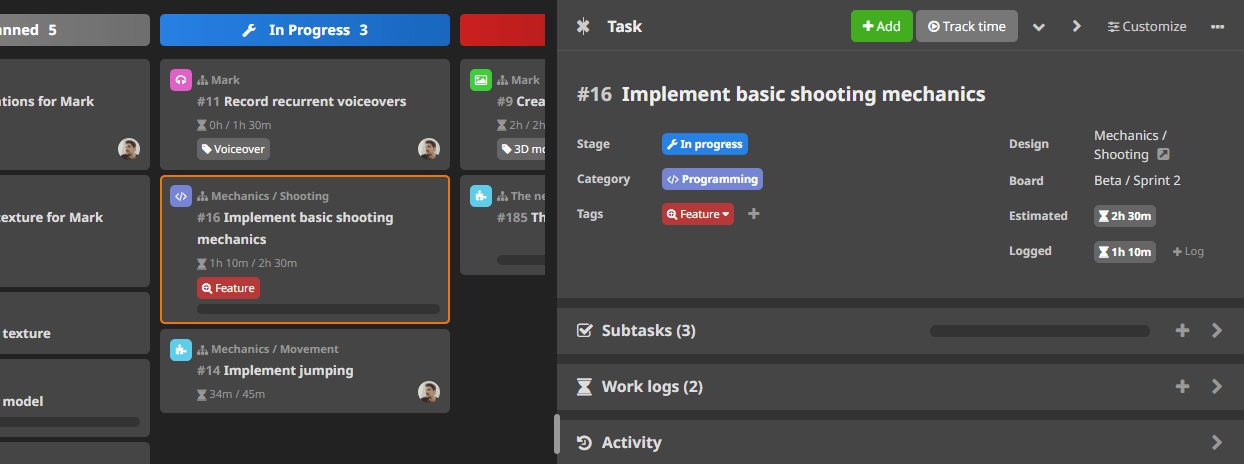
This update comes with handy features that will help you customize the work item and design element editors to fit your workflow. After last year’s big UI update, we have received so much feedback about how you miss some of the simplicity of the old work item and design element editors, so we made them fully customizable so you can decide which flavor better suits you. We also added some usability features to the administration panels. Oh, and this is available for everyone!
Let’s take a look!
Customizable editors
Looking at the work item and design element editors now, you will notice a “Customize” button on the panel’s header. Clicking on it will open a dialog with many options. These options are separated into two blocks: Fields and Sections.
Fields customization
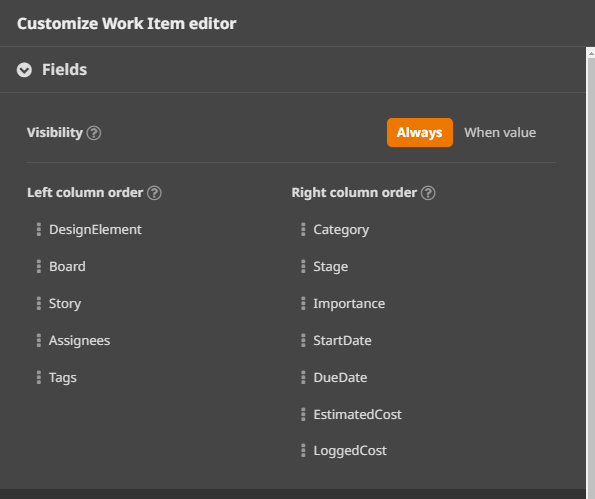
The fields block contains options for customizing the editor’s fields section, the one with the title, category, dates…
- Visibility: This option determines whether the fields are always shown in the editor or only when they have a value. This way, you can decide whether all the fields will always be visible or if you have to manually add the ones that are not set, keeping the editor clean and simple. To add new fields, you can use the “Add” button on the header of the editor or the keyboard shortcuts.
- Left and right column order: Besides the title, the rest of the fields are organized in two columns. You can now decide the order of the fields and change the column one field is on. Just drag and drop the fields around and organize them the way it makes more sense to you.
Sections customization
The section block contains the options for customizing the rest of the editor’s sections, such as subtasks, comments, attachments, etc.
- Mode: Here you can decide if you want your sections as a single scrollable page, or if you prefer to have tabs for a cleaner and focused display. This option was already available before and has been moved from the header to this customization dialog.
- Visibility: Like the option in the fields block, this option determines if the empty sections are displayed or not. Setting it to “When value” will hide the empty sections, simplifying the editor when you don’t have a lot of data for a work item or element. Exactly like the fields, you can add new elements to these sections when they are not shown by using the “Add” button or using shortcuts.
- Metrics: This option is for design elements only. It allows you to hide the Metrics section that shows stats on the work items inside the element.
- Collapsible: When your sections are in “One page” mode, enabling this option will make the sections collapsible, which can help you focus only on what you’re working on at the moment. When this mode is enabled, you’ll have two buttons on the editor header that will help you quickly expand or collapse all the sections.
- Default state: This option comes into effect when the “Collapsible” option is enabled. It determines if the editor will remember the state of the sections (which ones are expanded or collapsed), or what it will be their default state when you open a work item or element (collapsed or expanded).
- Order: Just like the fields, you can sort the sections the way you want to adapt them to your preference and have the most relevant sections to you on top.
It’s important to note that work item and design element editors have independent configurations, having the flexibility to organize them differently if that suits your workflow. Also, these configurations are by user, so any person in your team can have the panel organized in their preferred way.
Other improvements
Additionally to the customizable editors, we made some improvements to the administration pages where you can edit the project’s master data (categories, tags, stages, etc.). You can now multi-select items in those lists, rearrange them, and delete them in batches, simplifying setting these items up for a new project or making relevant changes.
The sections affected by these changes are:
- Users
- Categories
- Design Element Types
- Tags
- Stages
- Importance Levels
- Roles
Additionally, Studio users, you can now sort and batch-edit the projects in the Administration -> Projects section of the workspace.
We also fixed a few important bugs:
- Story tasks manual sorting on the work item editor.
- Order of design element lanes when the board is grouped by design element.
I hope you like these changes, we will continue adding customization and usability improvements based on your feedback in the next updates. We are also working on some features you will expect to rollout progressively in the next months:
- Improved file manager
- Custom stages by category (premium)
- Boards grouped by user story (premium)
- Video attachment player
- Gantt chart improvements (premium)
- Advanced permissions (premium)
Happy planning!